What is a Points System?
Points systems are used to create counters that track users’ interactions with Metrics, Achievements and Streaks. You can then build features like ‘XP’ and ‘Energy’ around these counters within your product.Use Cases
Rewards
Points systems can be used to create features like ‘XP’ or ‘Gems’ that reward users for a number of interactions at different rates. In this way points can be used to weight the value of certain interactions differently to others to reward users for taking the actions you consider most closely correlated to retention.Metering
Points systems can also be used to create features like ‘Energy’ that meter usage of your product in a way that gives you control over promoting and restricting user activity. This allows you to control the rate at which users can use your product with a flexible mechanic that sits outside your codebase.Creating Points Systems
Trophy let’s you set up multiple points systems for different use cases within your application.Hit New Points System
Give the new points system a name, and a unique key. The key is what you’ll
use to reference the points system in APIs and in email templates if
relevant.
Add a description (Optional)
You can also give the points system a description which is returned from
APIs to be displayed in your application.
Configure max points (Optional)
If you want to limit the number of points that each user can have in your new system, set a value in the ‘max points’ field.
Points Triggers
In Trophy, points are awarded to or deducted from users through triggers. These define the different mechanics that make up your points system. You can add as many triggers as you like to each points system you set up, allowing you to create different logic for how points are awarded or deducted for different points systems.Types of Triggers
There are multiple types of triggers in Trophy that can be used to award or deduct points in different ways.Metric Triggers
Points can be awarded or deducted continually as users increment Metrics. You can choose to award or deduct any arbitrary number of points at any arbitrary metric threshold, for example “award 10 points for every 3 tasks completed”.Streak Triggers
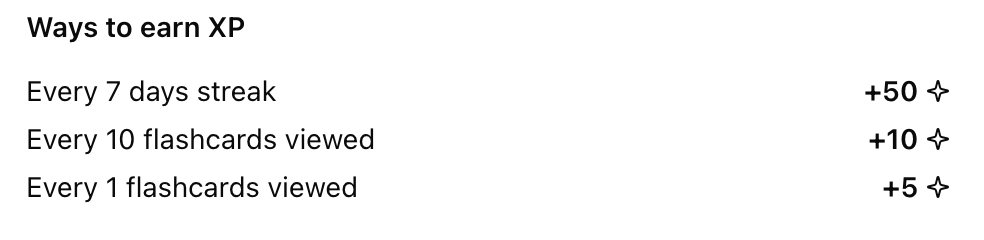
Points can be awarded or deducted for reaching any arbitrary length of a Streak, for example “award 50 points for every 7 days streak”.Achievement Triggers
Points can be awarded or deducted when users unlock specific Achievements, for example “award 100 points when users completed theprofile-completed achievement”.
Time-based Triggers
Points can be awarded or deducted at repeating time intervals, every hour or every day. For example “award 10 points every 3 hours”.User Identification Triggers
Points can be awarded when users are first identified in Trophy, useful for granting an initial amount of points when they sign up to your product.Creating Triggers
To create a new points trigger, head to the points system that you want to create a trigger for and follow the steps below.Choose a trigger type
Choose how you want points to be awarded or deducted as described by the available trigger types.
Set up trigger
Once you’ve chosen the points trigger type, you need to set up the trigger settings.
- If you chose the Metric trigger, you’ll need to choose the metric and the threshold amount at which to award or deduct points.
- If you chose the Streak trigger, you’ll need to set the streak length that should award or deduct points.
- If you chose the Achievement trigger, you’ll need to choose the achievement that should award or deduct points when completed.
- If you chose the Time trigger, you’ll need to choose the time unit you want to award or deduct points on (hours or days) and the number of those time units that you want to award or deduct points after.
- If you chose the First User Identification trigger, you won’t need to add any additional configuration.
Set points to award/deduct
Once your trigger is configured, set the number of points to award or deduct
when fired.
Add attribute filters (Optional)
You can assign attribute filters to a points trigger to further restrict when they apply.
- To limit a Metric trigger to only apply to events with specific custom event attributes, select an attribute and enter a value in the Event Attribute section.
- To limit any type of trigger to only apply to a user with one or more specific custom user attributes, add attributes and the desired values in the User Attributes section.
Balancing Points
Running an effective points system requires finding the optimal pace at which users earn points. Too fast, and users will get points fatigue, rendering them useless. Too slow, and users may get bored and churn. Trophy’s preview tool can model different scenarios to help you determine how frequently users should earn points in each of your points systems.Points Boosts
Points boosts are multipliers that you can use to increase the number of points awarded to users during a specific time period. This section explains how boosts work and how they can be used to increase your application’s retention and engagement.Boost Targeting
There are a few different ways you can use boosts in Trophy.- Global boosts multiply points earned by all users during the boost window, or can be scoped to a specific user cohort by using custom user attributes.
- User-specific boosts only multiply points earned by a single user within the boost window.
Creating Boosts
User-specific boosts can only be created programmatically through the Admin API.
Go to the Boosts page
Go to the points page and click on the points system you want to create a boost for. Then navigate to the Boosts tab and click the New Boost button.
Choose a name
Choose a name for your boost that clearly describes what it’s for. For example “2X Boost - All Users - Christmas 2026”.
Set the multiplier
Set the numeric value that the boost will multiply points earned by. If you choose a decimal multiplier, you’ll have the option to choose the rounding behavior the boost should use.
Set the boost window
Choose a start and (optionally) an end date for your boost. If you choose a future start date, Trophy will schedule the boost to go active on your chosen date. Similarly if you set an end date, Trophy will take care of stopping your boost for you.
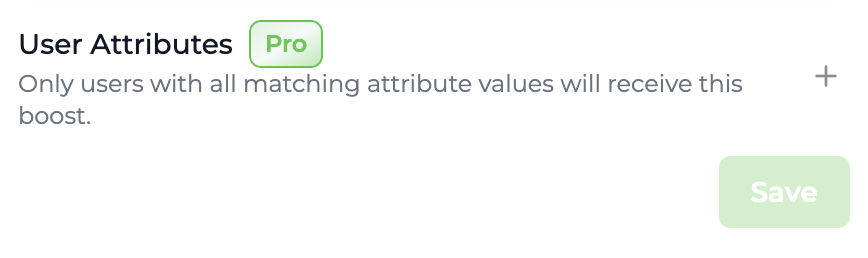
Add attribute filters (optional)
This feature requires custom user attributes which are available on the Pro plan.
Boost Multipliers
Every boost has a single multiplier value that increases the total points earned by users affected by that boost. Boost multipliers must be positive numbers, but can be decimals to support scenarios where percentage boosts like ‘50% more points’ may be required.Boost Stacking
Points boosts in Trophy stack through multiplication. This is to support allowing users to benefit from multiple boosts simultaneously. To demonstrate stacking consider a 2X, 1.5X and a 3X boost all active within the same time period. The resulting boost multiplier for a user that qualifies for all three boosts would be as follows:Boost Stacking Example
Boost Rounding
Trophy supports floating point metric event values, but takes care of rounding points to integers automatically. However, when using decimal boost multipliers, there may be some scenarios where this default rounding is not enough to always produce integer points values. Therefore Trophy offers three rounding modes to provide additional control on rounding behavior specifically when boosts are involved in points calculations.- Round Down: By default, Trophy will round points down to the nearest integer when boost multiplication results in a decimal.
- Round Up: Trophy rounds decimal points up to the nearest integer after boost multiplication.
- Round Nearest: Trophy will round points to the nearest integer, up or down, based on the final value after boost multiplication. For example
1.2is rounded to1and1.7is rounded to2.
Displaying Points
There are a few ways to use Trophy to fetch and display points in your app.For working examples check out our guides on adding an XP
feature or an energy
feature to your web or mobile app.
Triggering Transactional UI
Firstly, any points awarded to or deducted from users as a result of a metric change event are returned in the response when using the metric change event API. The response includes the user’s new total points, how many points were awarded or deducted as a result of the event, and the details of the specific points triggers that fired.Response
- Displaying in-app notifications and pop-ups
- Playing sound effects
Displaying User’s Points
Trophy also has APIs that allow you fetch user’s points data whenever you want. First, the user points API returns the user’s total points for a particular points system and up to 100 of the most recent events that awarded points to or deducted points from them. You can use this API to display the user’s total points anywhere in your platform as well as a ‘Latest awards’ section or similar.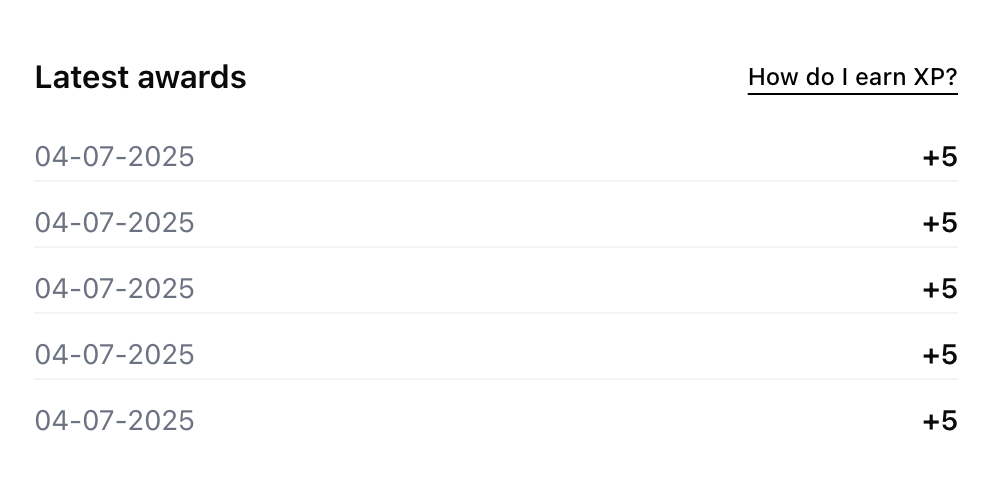
Displaying Aggregate Data
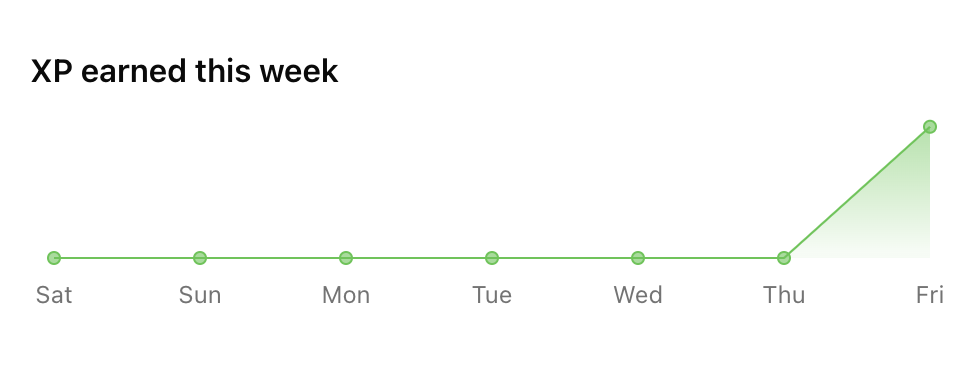
Additionally there are a number of APIs that can be used to fetch and display points data at the account level. First, the points summary API returns aggregate points system data across your entire user base. Use this data to display a histogram of points for a particular points system and show users how they compare to others on the platform.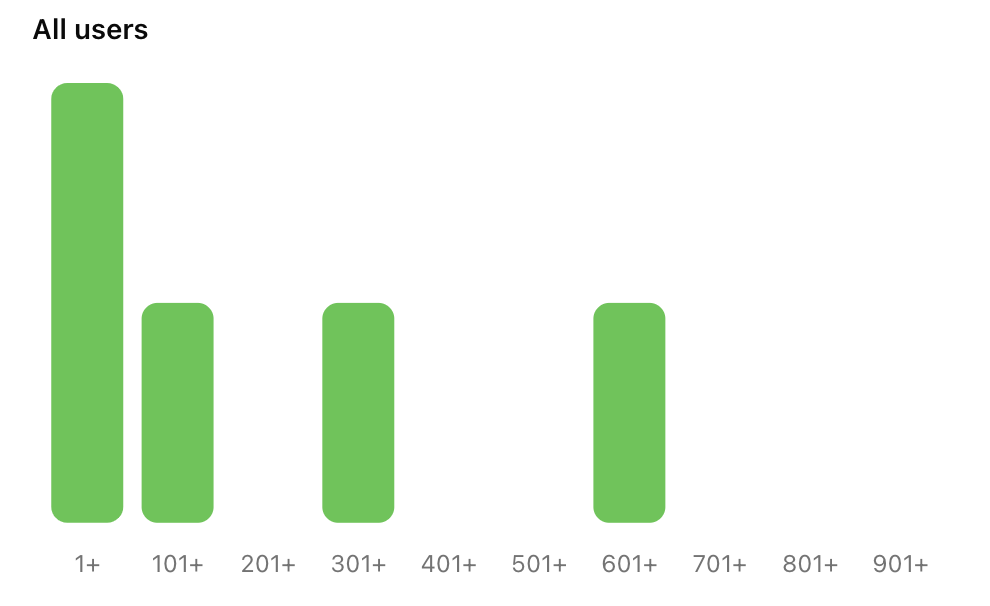
Points Analytics
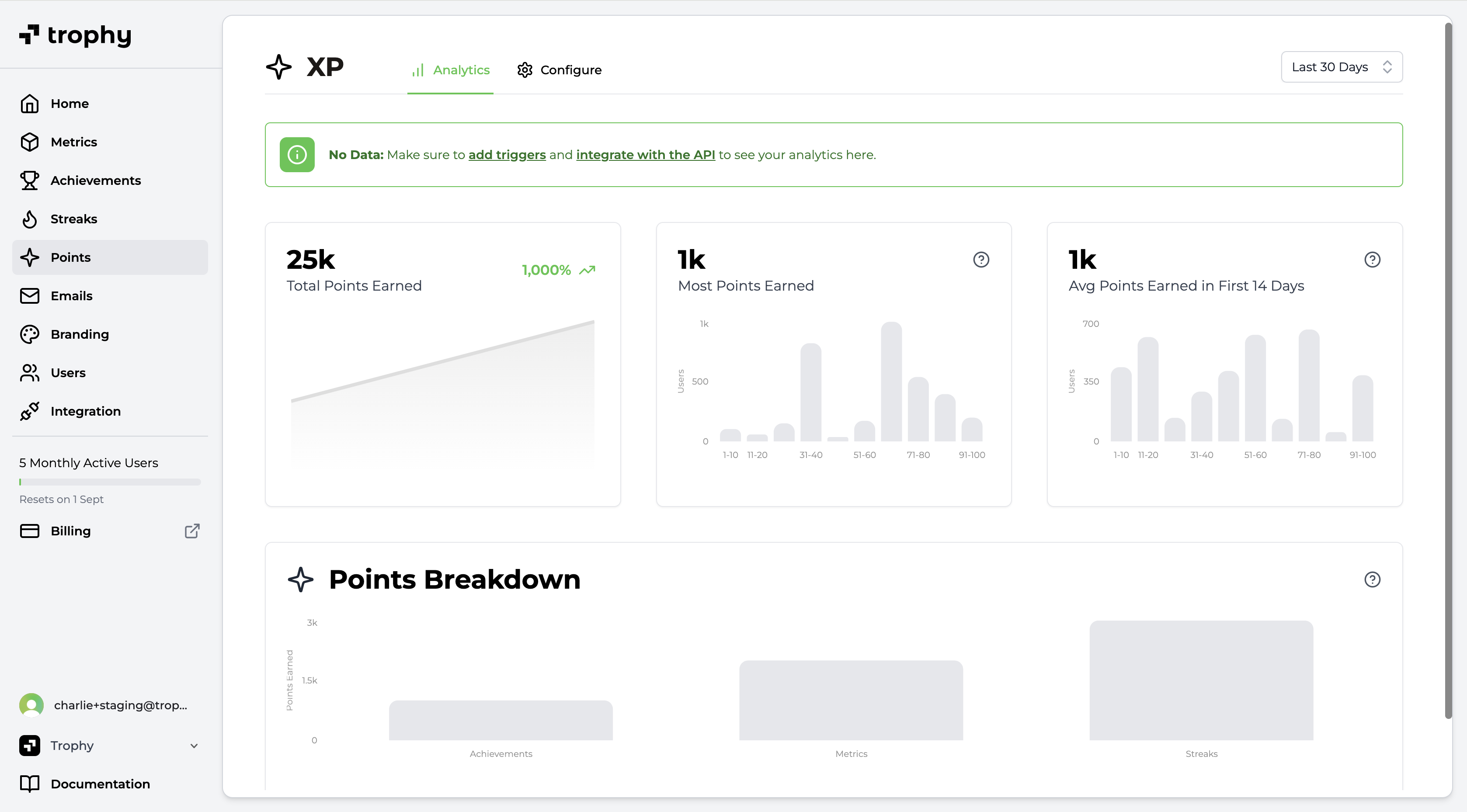
Trophy has built-in analytics to track points awards for each points system you configure across your users in real time including:- Total points earned by all users over time
- Most points earned by a single user
- Average points earned in the first 14 days (useful for understanding new user retention patterns and the impact of points)
- A breakdown on the most commonly awarded points triggers